
How to Use Buildium: A Step-by-Step Guide for HOA Homeowners in Eastern NC
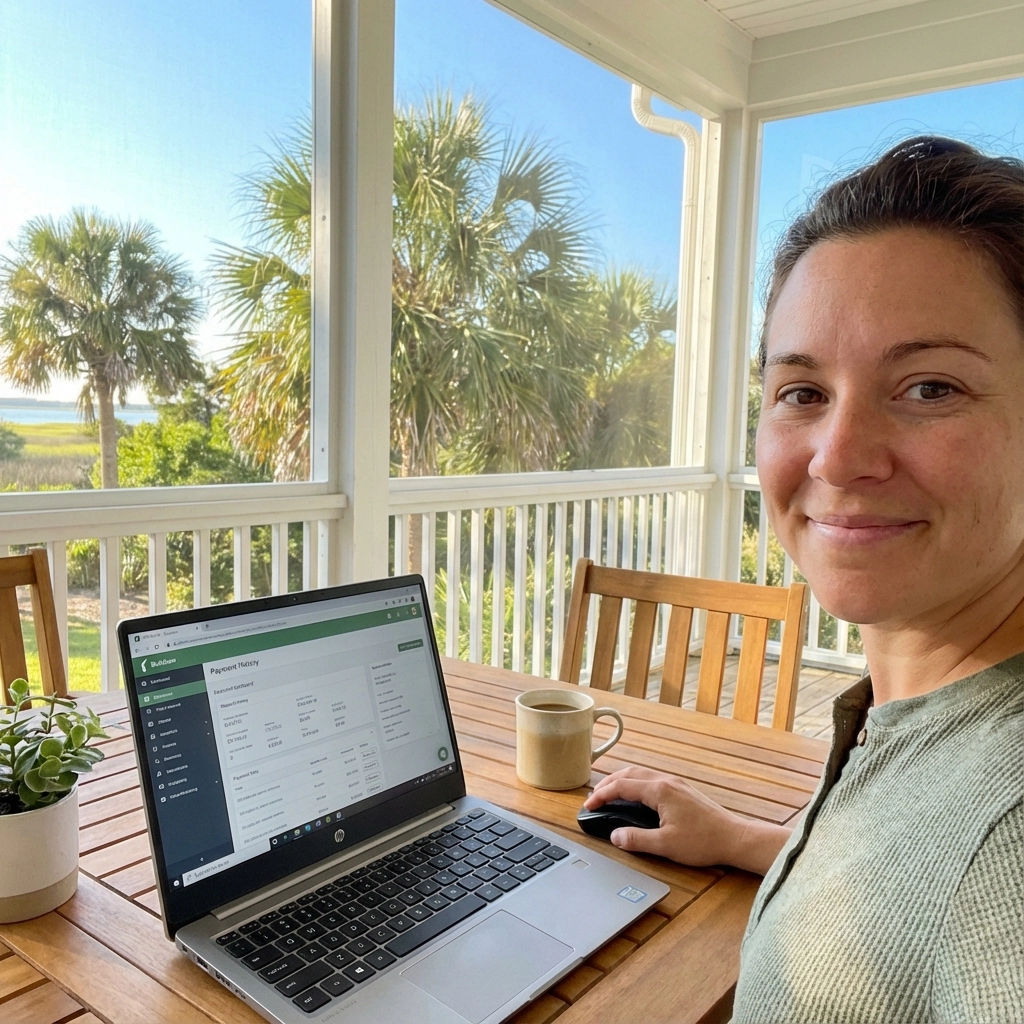
If you’re living in an HOA community in Eastern NC managed by HOA-ENC, your association uses Buildium to manage everything from dues collection to maintenance requests. While the software does all the heavy lifting behind the scenes for your HOA board and management company, as a homeowner, you have access to a powerful portal that puts important information and services right at your fingertips.
Let’s walk through everything you need to know about using Buildium as an HOA homeowner, from logging in for the first time to making the most of all the features available to you.
Why Your HOA Uses Buildium
Before diving into the how-to, it’s helpful to understand why your HOA chose Buildium in the first place. This platform handles the complex job of managing an entire community: tracking finances, coordinating maintenance, processing payments, managing violations, and keeping everyone connected.
For you as a homeowner, this means less paperwork, faster communication, and 24/7 access to your account information. Instead of calling the management office during business hours or waiting for mailed statements, you can handle most of your HOA-related tasks online whenever it’s convenient for you.
Getting Started: Your First Login
Your HOA management company or board should provide you with login credentials when your community starts using Buildium, or when you move into the community. If you haven’t received this information yet, contact HOA-ENC office directly.
Step 1: Access the Resident Center
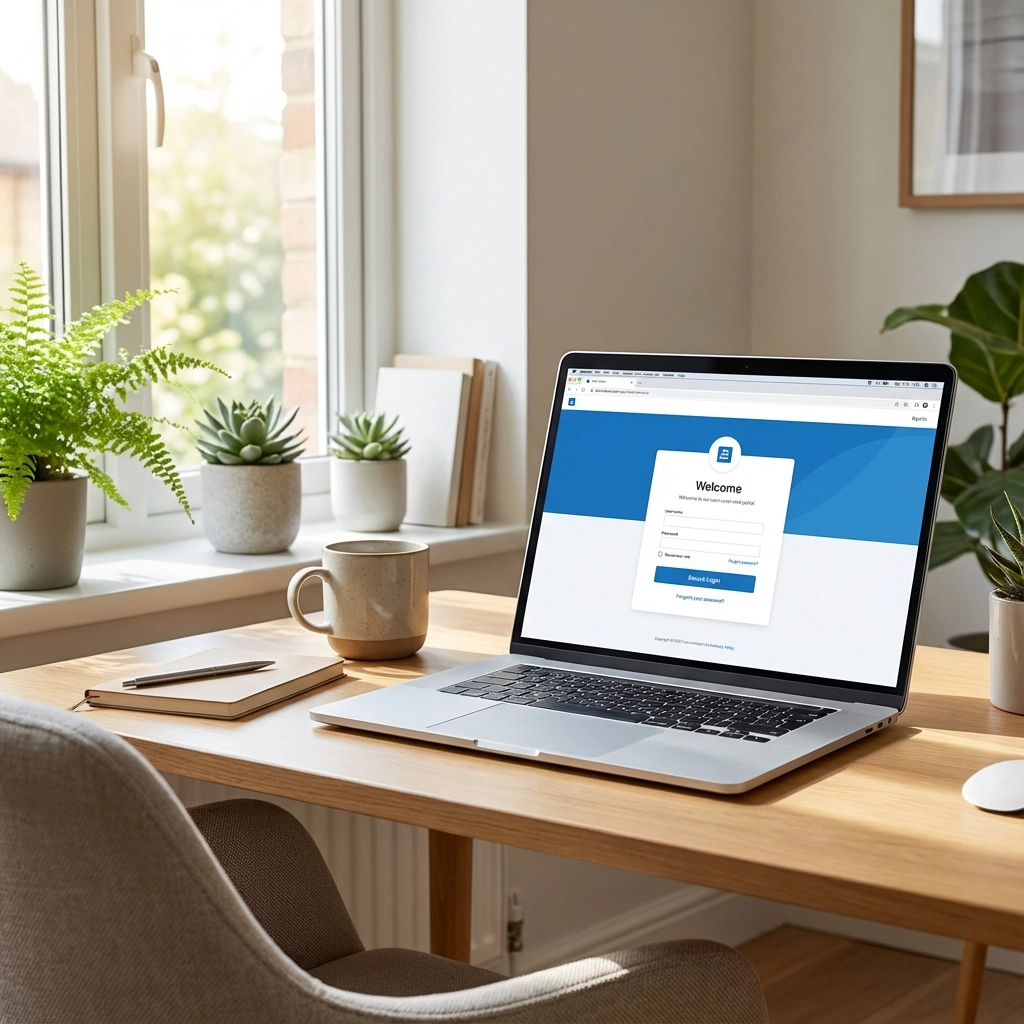
Navigate to your HOA’s specific Buildium portal. Owners Portal Log in or you might access it through your HOA’s website.
Step 2: Initial Login
Enter the username and temporary password provided by your management company. You’ll typically be prompted to create a new, secure password on your first login.
Step 3: Verify Your Information
Take a few minutes to review and update your contact information, ensuring your email address and phone number are current. This helps ensure you receive important community notifications.
Resetting Your Password
Forgot your password? It happens to the best of us. Here’s how to reset it:
- On the login page, click “Forgot Password”
- Enter the email address associated with your account
- Check your email for a password reset link
- Follow the link and create a new password
- Make sure your new password meets the security requirements (usually includes uppercase, lowercase, numbers, and special characters)
If you’re still having trouble, contact HOA-ENC management office for assistance.
Navigating the Owner Portal Dashboard
Once you’re logged in, you’ll see your dashboard – this is your command center for all HOA-related activities. The layout is designed to be intuitive, with the most commonly used features easily accessible.
Your Account Summary
The main dashboard typically displays your current account balance, recent transactions, and any outstanding dues or fees. This gives you an immediate snapshot of where you stand financially with your HOA.
Quick Actions Menu
Look for buttons or links that allow you to quickly access popular features like making payments, submitting requests, or viewing documents.
Recent Activity
Many portals show your recent activity, including payments made, requests submitted, and communications received.
Viewing and Downloading Reports
One of the most valuable features for homeowners is access to important HOA documents and your personal account information.
Accessing Financial Statements
Your HOA’s annual budget, financial statements, and meeting minutes are typically available in a “Documents” or “Community Information” section. These documents help you stay informed about how your dues are being used and major community decisions.
Personal Account Statements
To view your individual account history:
- Navigate to “Account” or “My Account”
- Look for “Statements” or “Transaction History”
- You can usually filter by date range or transaction type
- Download PDFs for your records by clicking the download icon
Meeting Minutes and Community Updates
Stay informed about board decisions and community changes by accessing meeting minutes and announcements in the community documents section.

Paying Your HOA Dues
Gone are the days of writing checks and hoping they arrive on time. Buildium makes paying your dues simple and secure.
One-Time Payments
- Click “Make a Payment” or similar button on your dashboard
- Select the amount you want to pay (it may auto-populate with your current balance)
- Choose your payment method (bank account or credit/debit card)
- Review the transaction details and confirm
- Save your payment confirmation for your records
Setting Up Automatic Payments
To never miss a due date again:
- Go to “Payment Settings” or “AutoPay”
- Choose your preferred payment method
- Select the date each month you want the payment processed
- Set the payment amount (usually your regular monthly dues)
- Review and confirm your AutoPay settings
Payment History
All your payments are tracked in the system, making it easy to reference past transactions for tax purposes or personal records.
Submitting Service Requests
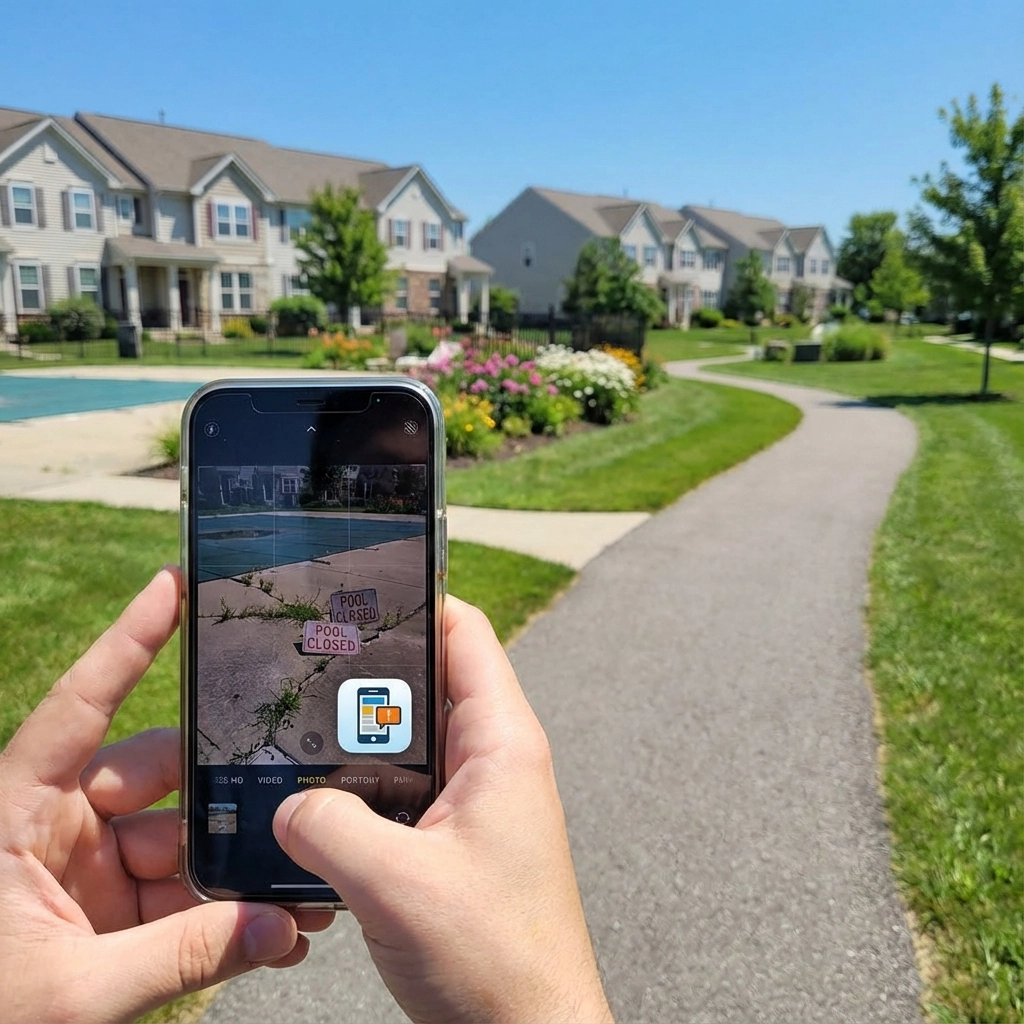
When something needs attention in your community’s common areas, or if you have an issue that falls under HOA responsibility, the portal makes it easy to get help.
Creating a New Request
- Look for “Submit Request” or “Maintenance Request”
- Choose the appropriate category (landscape, pool, clubhouse, etc.)
- Provide a detailed description of the issue
- Add photos if helpful (many systems allow image uploads)
- Include your preferred contact method
- Submit the request
Tracking Your Requests
Once submitted, you can monitor the status of your request:
- Open: Your request has been received
- In Progress: Work is being scheduled or performed
- Completed: The issue has been resolved
You’ll typically receive email updates as the status changes, and you can always log in to check progress.
Updating Your Personal Information
Keep your contact information current to ensure you receive important community communications.
Updating Contact Details
- Navigate to “Profile” or “My Information”
- Update your email address, phone number, or mailing address
- Save your changes
Adding Emergency Contacts
Some communities allow you to provide emergency contact information for situations when you’re unavailable.
Communication Preferences
You may be able to choose how you receive community notifications – email, text, or both.
Tips for Getting the Most from Buildium
Enable Mobile Notifications
If your HOA’s Buildium setup includes mobile notifications, enable them for payment reminders, maintenance updates, and community announcements.
Check the Portal Regularly
Make it a habit to log in monthly, even if it’s just to check your account balance and look for community updates.
Keep Your Browser Updated
For the best experience and security, use an updated web browser when accessing your portal.
Save Important Documents
Download and save annual budgets, meeting minutes, and your payment confirmations for your personal records.
Use the Communication Features
If your portal includes messaging capabilities, don’t hesitate to use them to communicate with management about non-emergency issues.
Mobile Access
Many HOA communities using Buildium also provide mobile access through responsive websites or dedicated apps. Check with your management company to see what mobile options are available for your community.
Troubleshooting Common Issues
Can’t Remember Your Login Information
Contact HOA-ENC management office. They can help reset your credentials or provide guidance on accessing your account.
Payment Won’t Process
Double-check that your payment information is entered correctly. If issues persist, try a different payment method or contact HOA-ENC management office.
Can’t Find a Specific Feature
Portal layouts can vary between communities. If you can’t locate a feature mentioned in this guide, reach out to HOA-ENC management office for community-specific guidance.
Getting Help When You Need It
While Buildium is designed to be user-friendly, questions do come up. Your first point of contact should always be your HOA management company, as they can provide specific guidance for your community’s setup.
For communities managed by HOAENC, you can visit our FAQ page for additional resources or reach out directly at info.hoaenc@gmail.com if you need assistance navigating your Buildium portal or have questions about your HOA account.
The goal is to make your HOA experience as smooth as possible, and mastering your Buildium portal is a big step toward staying informed and engaged with your community. Take some time to explore the features available to you – you might discover tools that make managing your homeownership responsibilities even easier.
